Notion vs ClickUp for Personal Planning: Which Fits Your Week?
Notion vs ClickUp for personal planning: compare calendar views, recurring tasks, setup and free plan limits before moving your weekly routine.
By Ultimate Notion Planner by Cosmo Suite · Editorial policy
Published · 8 min read

You have a week with work, appointments, home tasks and a few plans that repeat. You want one place to see what is due and when, without building a second job around your planner.
For one person's week, Notion fits when notes and planning pages belong together. ClickUp fits when tasks and calendar scheduling are the center of the setup. Both have a free plan. The right choice depends on whether you want a flexible workspace or a task-first system.
Quick Answer
- Choose Notion for pages, notes and dated lists that you can shape around your week.
- Choose ClickUp for tasks, a built-in calendar view and a more structured workflow.
- Both offer a free plan. Check the recurring task limits before you build a routine around future calendar entries.
Where Notion and ClickUp Start
Notion starts with pages. You can keep notes, lists and databases inside one workspace, then view a dated database as a calendar. ClickUp starts with tasks. You organize work into lists and use views such as List, Board or Calendar.
A calendar view shows dated items against days or weeks. A task-first system begins with actions and their dates or status. That difference changes the setup. In Notion, you decide what information to collect and how to arrange it. That freedom can help when a week includes appointments, personal goals and reference notes. It can also invite extra setup if you keep adjusting pages before using them.
ClickUp gives tasks a defined home and connects them to a calendar view. Its calendar can show a day, four-day period, week or month. You can drag tasks to change their dates, and the view can sync with Google Calendar or Outlook Calendar. That structure can be useful when dates and task status drive your day.
Neither system is automatically simpler for everyone. Ease of use depends on how much structure you want to build before you can plan.
Which One, for Whom
Choose by the job you want the app to do. This comparison is for one person planning a week, not a team managing a project portfolio.
| Planning need | Notion | ClickUp | Better fit |
|---|---|---|---|
| Starting point | Pages, notes and databases | Tasks and lists | Depends on your current habit |
| Calendar view | Calendar view for a database with a Date property | Calendar view with day, four-day, week and month ranges | ClickUp for ready task scheduling |
| Repeat tasks | Repeating database templates | Recurring tasks on every plan | Tie, with a plan limit in ClickUp Calendar |
| Future repeats on calendar | New entries are created on the schedule | Future instances show in Calendar on Unlimited and above | ClickUp requires a paid plan for the preview |
| Notes beside tasks | Pages can hold notes and planning context | ClickUp Docs can sit alongside tasks | Notion for page-led planning |
| Free starting point | Free plan for individual use | Free Forever with unlimited tasks | Tie |
For current US pricing, Notion lists Free at $0 and Plus at $10 per member each month. ClickUp lists Free Forever at $0 and Unlimited at $7 per user each month with yearly billing or $10 monthly. A one-person account can start on either free plan. Paid plans matter when you need their specific limits or features, so verify the vendor page before changing plans.
Plan the Same Week in Each App
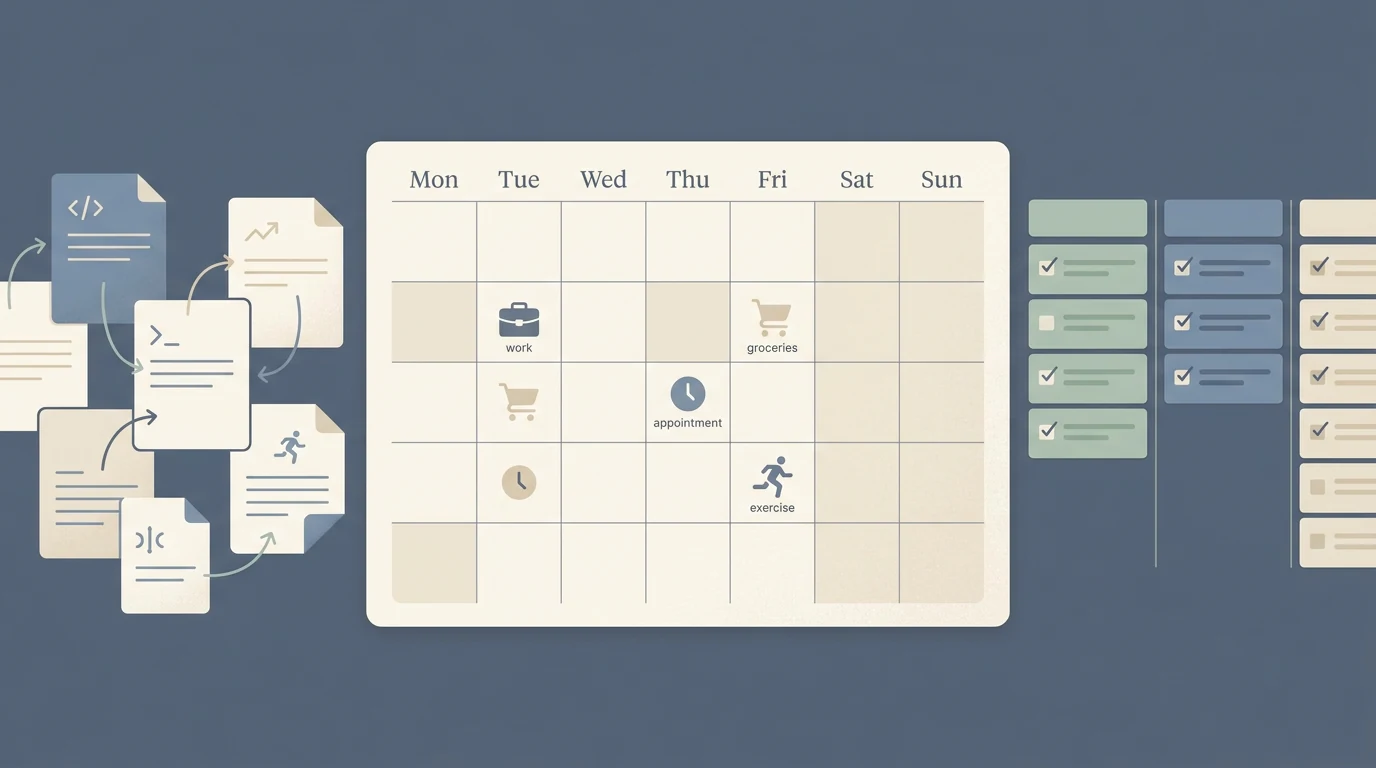
Take a hypothetical week with a work deadline, a dentist appointment, groceries, two exercise sessions, a note about a bill and a weekly review. This is an example for comparing the setup, not a test result from either app.
In Notion, you could keep the tasks and appointments in a dated database. Add a calendar view to see the week, and use a page for notes or the weekly review. If you want a different view for tasks, create another view from the same source list. The same item can be shown in a list and on a calendar, so you do not have to copy its details into separate pages.
In ClickUp, add each action as a task and set its date. Use its Calendar view to move a task to a different day, then switch to a list view when you want to work through tasks in order. Keep the bill note in a task description or a ClickUp Doc. You can connect an external calendar if your appointments already live in Google Calendar or Outlook.
The difference is where you spend the first few minutes. Notion asks how you want to shape the workspace. ClickUp asks how you want to organize the tasks. If the note about the bill needs its own reference page, Notion may feel natural. If the week is mostly dated tasks, ClickUp may get you to the calendar faster.
If you want a flexible page-based system, see our Notion planner with month, week and day views. If you are also choosing between note-taking tools, our Notion vs Obsidian planning comparison looks at a different kind of week.
Calendar and Recurring Tasks
Both apps can put dated work on a calendar, but the details differ.
In Notion, a database calendar view needs a Date property. Notion Calendar can display dated database items and lets you edit them when you have the required access. Repeating database templates can create a new entry on a daily, weekly, monthly or yearly schedule. This works well when a routine task needs the same page fields each time, such as a weekly review with prompts.
ClickUp has a dedicated Calendar view. You can plan in day, four-day, week or month ranges, move tasks between dates, and sync the calendar view with Google Calendar or Outlook Calendar. Recurring tasks are available on every ClickUp plan. The plan distinction is that showing future recurring instances in Calendar view requires Unlimited or above, according to ClickUp’s Calendar help.
If you want to see next month's repeats before they become active tasks, the plan limit matters. A free ClickUp user can create recurring tasks, but future instances do not appear in Calendar view under the current plan rules. Check the current Calendar settings before relying on that preview.
Notion also separates its database calendar view from Notion Calendar, the calendar app. A calendar view helps you see dated entries in a database. Notion Calendar can bring those entries into a calendar interface. A ready-made Notion planner can reduce the page-building work, but its Google Calendar connection is a manual link, not a two-way sync.
Where Each App Is Better
Notion is a strong fit when a plan needs context around it. A project note, a grocery list, a few personal trackers and a weekly calendar can live in one workspace. You can build a setup that matches your language and your routines. The tradeoff is maintenance: if every page, property and view needs to be designed by you, keep the first version small.
ClickUp is a strong fit when you think in tasks and dates. The task is the main record, and its views help you sort or schedule those tasks. The Calendar view's Google and Outlook integrations can keep appointments visible beside tasks. This can be more structure than a simple personal planner needs, especially if you do not use its task fields and status options.
ClickUp also has an edge for people who want task recurrence. Its recurring tasks are available on every plan, while future recurring instances in Calendar require Unlimited or above. Notion's repeating templates suit routines where each new entry should have the same page structure. Think about whether you need a fresh task, a reusable page or both.
For more options beyond these two, see our guide to Notion alternatives for planning a week.
Why Trust This Article
This is a documentation comparison, not a hands-on app test. We checked Notion's and ClickUp's official pricing pages and help articles on October 30, 2026. The About page identifies the publisher, and the editorial policy explains how content is sourced. Prices and plan features can change, so confirm them with each vendor before you make a purchase.
The example week is hypothetical. It shows how a person might arrange common tasks and appointments in each tool. It does not measure setup time or prove that one app is faster.
How the Ultimate Notion Planner Fits In
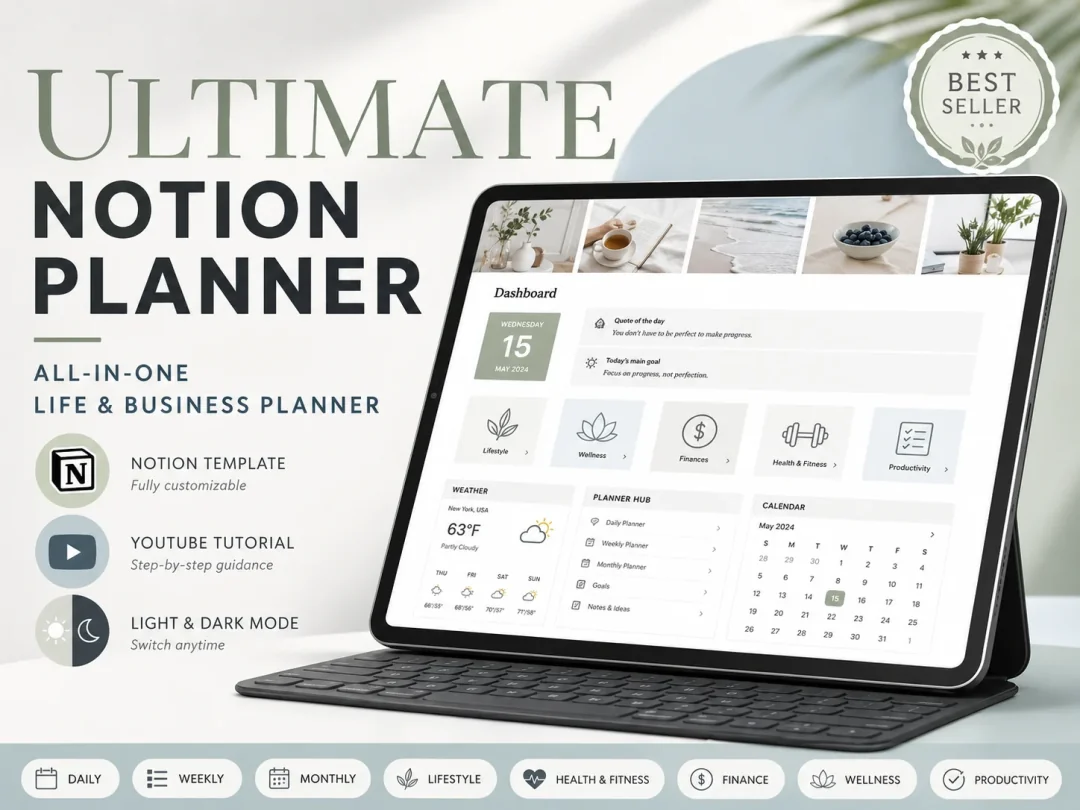
If you prefer Notion but do not want to start from a blank page, a ready-made Notion planning template is one route. The Ultimate Notion Planner includes daily, weekly and monthly planning pages, a central dashboard and master calendar, light and dark themes, and a setup guide with a YouTube tutorial.
Its Google Calendar connection is a manual link. The planner's Notion views are connected across its pages, but it does not provide two-way Google Calendar sync. The product is a $9 one-time purchase in the US. Check the planner details if that setup matches what you need.
If the main reason you are searching is the page-building work, compare a ready-made template with your own one-week setup before moving everything. If you mainly want task status and scheduled repeats, try ClickUp first.
Run a One-Week Trial Before Moving
You do not need to transfer your entire planning system to choose. Try one ordinary week in whichever app is new to you.
- Add one fixed appointment and one deadline.
- Add a repeating task, such as a weekly review.
- Write down where you would keep a reference note.
- Check the calendar at the start and end of the week.
- Notice what you had to build or maintain to keep the week readable.
For ClickUp, confirm that its calendar and recurring-task plan limits match the way you want to see future work. For Notion, make sure the database date property and views are clear enough that you can add tasks without rebuilding the layout.
After a week, keep the setup that makes the next action and its date easy to find. If you are not sure, leave the old system in place while you try the new one. A calendar migration should be easy to reverse.
For a flexible mix of notes and dated planning, start with Notion. For a task list that you want to schedule and review from calendar views, start with ClickUp. Either way, begin with one week and add structure only when the week asks for it.
Frequently asked questions
Is Notion or ClickUp better for personal planning?
Choose Notion if you want notes, pages and dated lists together. Choose ClickUp if you prefer tasks with a calendar view and a more structured workflow.
Can I use ClickUp by myself for free?
Yes. ClickUp's Free Forever plan is free and includes unlimited tasks. Its recurring tasks work on every plan, but showing future recurring instances on Calendar views requires Unlimited or above.
Is Notion free for personal use?
Yes. Notion's Free plan is listed at $0 per member each month and is intended for individuals organizing personal projects and life.
Can Notion show tasks on a calendar?
Yes. A Notion database can use a calendar view when it has a Date property. You can also connect dated database items to Notion Calendar.
Can ClickUp sync a calendar?
ClickUp's Calendar view can sync with Google Calendar or Outlook Calendar. Check the vendor's current setup guide before moving your events.
Which app is easier to set up for one week?
ClickUp gives you task and calendar views in a task-first workspace. Notion takes more choices if you start from a blank page, though a ready-made planner can reduce that setup.
Sources
Keep reading
Notion vs Other Apps
Notion vs Obsidian for Planning Your Week: Which One Fits?
Notion vs Obsidian, judged only for planning a week: calendar views, recurring tasks, phone use and three-year cost, plus when Obsidian is the better pick.
· 8 min read

Notion vs Other Apps
Notion Alternatives for Planning a Week: 4 Picks by Job
Notion alternatives for personal planning, compared by job: task lists, daily routines, calendar control and AI planning, with US prices checked 28 Oct 2026.
· 9 min read